Manage User Access
As an admin, you have full control over who joins your team and what they can access. Use this guide to get your collaborators onboarded and manage their permissions.
🔑 Choose the Right Role
Section titled “🔑 Choose the Right Role”When you invite someone, you’ll need to assign a role. Here’s a quick breakdown of how they work:
About roles
Admin: Allowed to perform actions on organization management related resources.
Adops: Allowed to perform actions on ad-operations related resources but cannot edit the most sensitive account details.
Viewer: Can only view monetisation insights and current portfolio of monetised properties.
Billing email communications: Receives monthly invoice requests from Adagio’s platform by email.
📩 Invite New Members
Section titled “📩 Invite New Members”Getting your team into Adagio is simple:
Access your Account <a href="#howtousetheplatform-accesstotheaccount" id="howtousetheplatform-accesstotheaccount"></a>
Once you receive your credentials, log in to https://app.adagio.io.
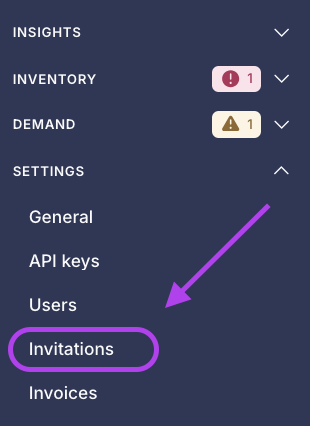
Go to Settings > Invitations
In your left Menu, you can access your settings account and hit Invitations.
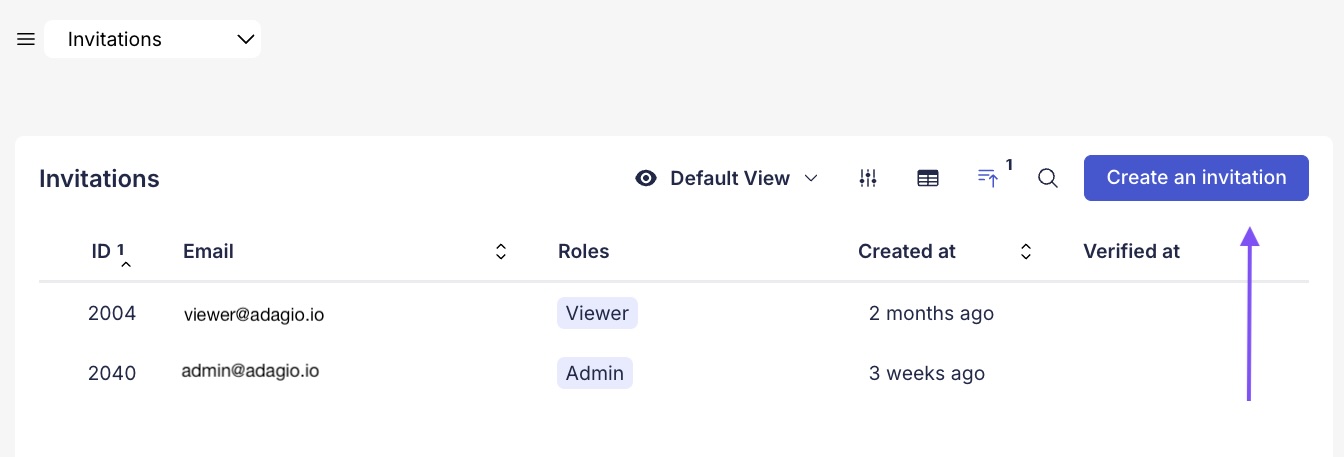
Create an invite
Hit the button “create an invitation” in the upper-right corner
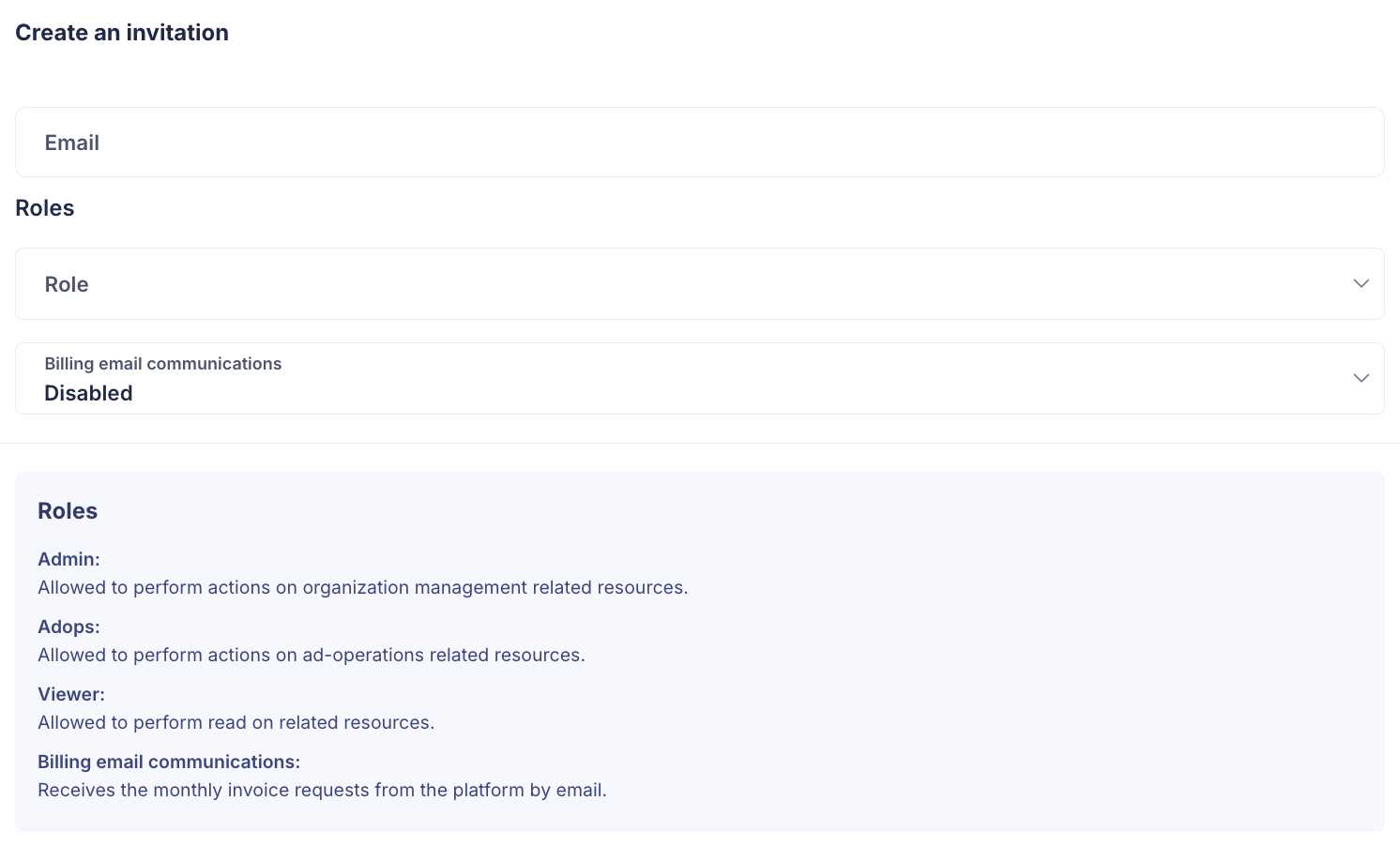
Enter Details
- Input user email address.
- Choose their Role.
- Billing Notifications: Toggle this to Enabled if this user should receive invoices and payment alerts, or Disabled it they shouldn’t.
Save & Follow-up
Your recipient will receive an email with an invite link to create their account.
🔄 Modify User Access & Security
Section titled “🔄 Modify User Access & Security”Once a user has joined your workspace, you can manage their account status and security settings directly from the Users list. Go to Settings > Users.
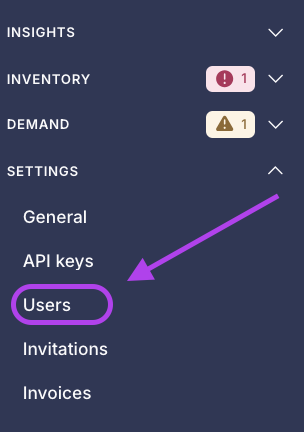
Click on a specific user profile to access the following options:
- Change Roles: Instantly promote a Member to Admin or adjust permissions as responsibilities change.
- Update Billing Status: Toggle billing email communications on or off at any time to control who receives financial alerts.
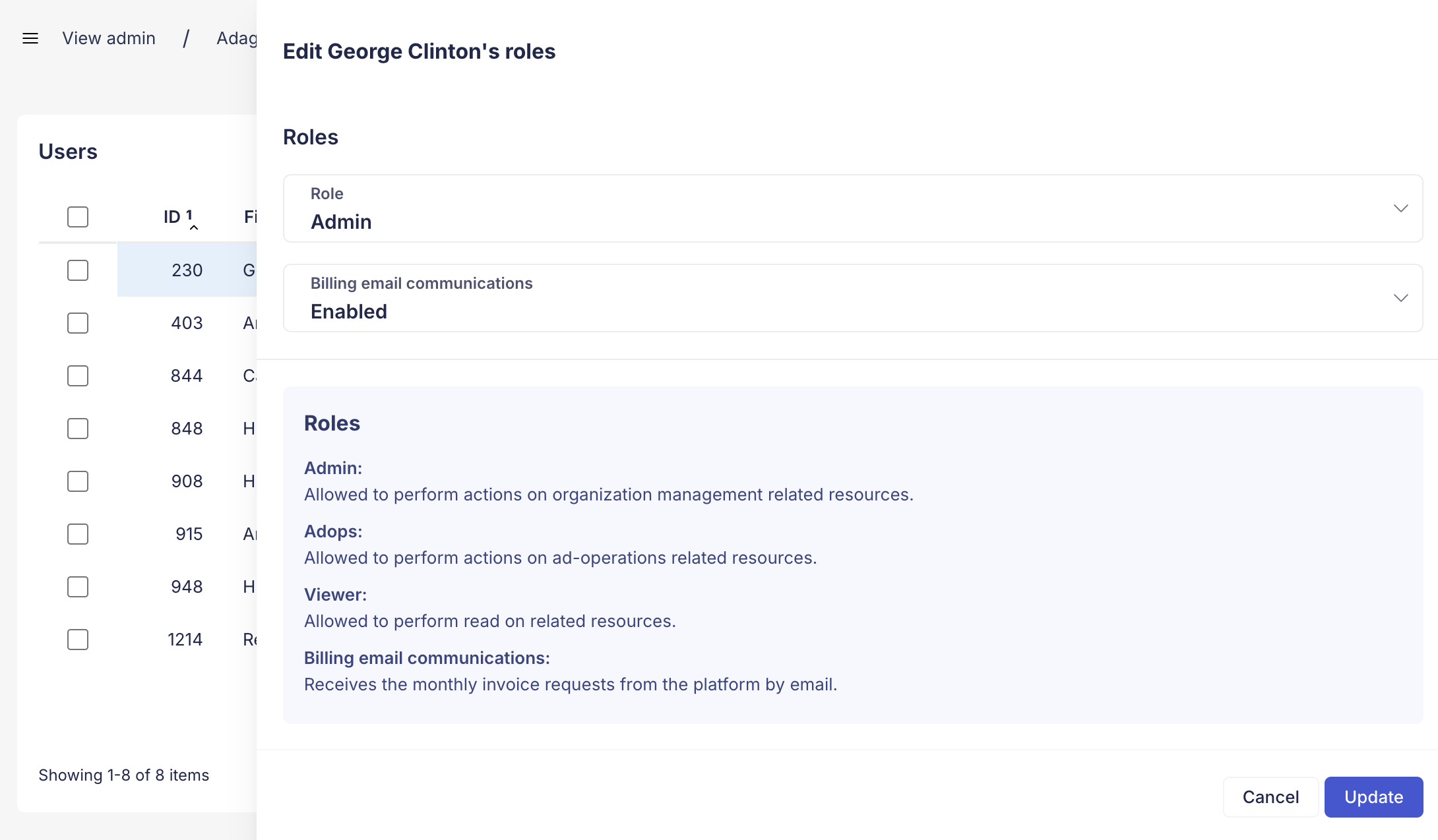
Security and Removal
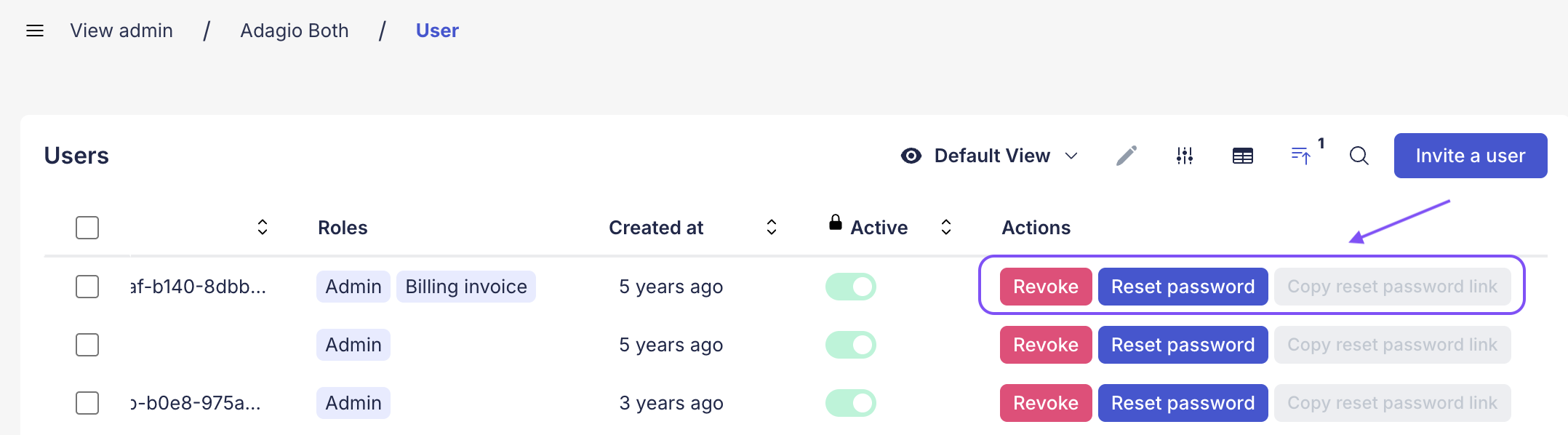
Section titled “Security and Removal”In the user list view, you may need to scroll horizontally to access additional administrative actions:
- Reset Password & Copy Link: If a team member has forgotten their credentials, click the Reset Password button to trigger an automated email. You can also Copy the Reset Password Link to send it to them manually through your own communication channels.
- Revoke Access: If you need to remove a collaborator from the workspace, hit the Revoke button. This will instantly terminate their access and free up a seat in your plan.