Declare Your Websites/Apps
To start monetizing your web or app inventory on our platform, you’ll first need to declare them. This involves providing essential parameters and following a few straightforward steps to set up your app or website.
Required information
Section titled “Required information”| Field | Required | Comment |
|---|---|---|
| Website domain or App store URL | Yes | for app compatible only with Android and Apple store |
| Website or App name | Yes | To ease this input, this field is automatically generated. |
| Publisher relationship | Yes if your sellertype is both |
Choose Owned and operated (O & O) or Managed and refer your Owner account ID or Manager ID if necessary. |
| Manager domain | Yes | It specifies the business domain of a primary or exclusive monetization partner of the publishers inventory. |
| Manager ID | Yes if the domain is managed | This is the unique identifier for the account that manages the website. E.g.: 54321. |
| Certification authority ID | Recommended If Publisher relationship is Owned and operated (O&O) or Manager | This is the unique identifier for the certification authority that certifies the website. E.g: abcd1234. |
Steps to add your inventory
Section titled “Steps to add your inventory”Log in to our Adagio Platform
Connect to https://app.adagio.io.
Go to Inventory > Websites/Apps
In your left Menu, go to the Inventory tab and hit the Websites/Apps section.
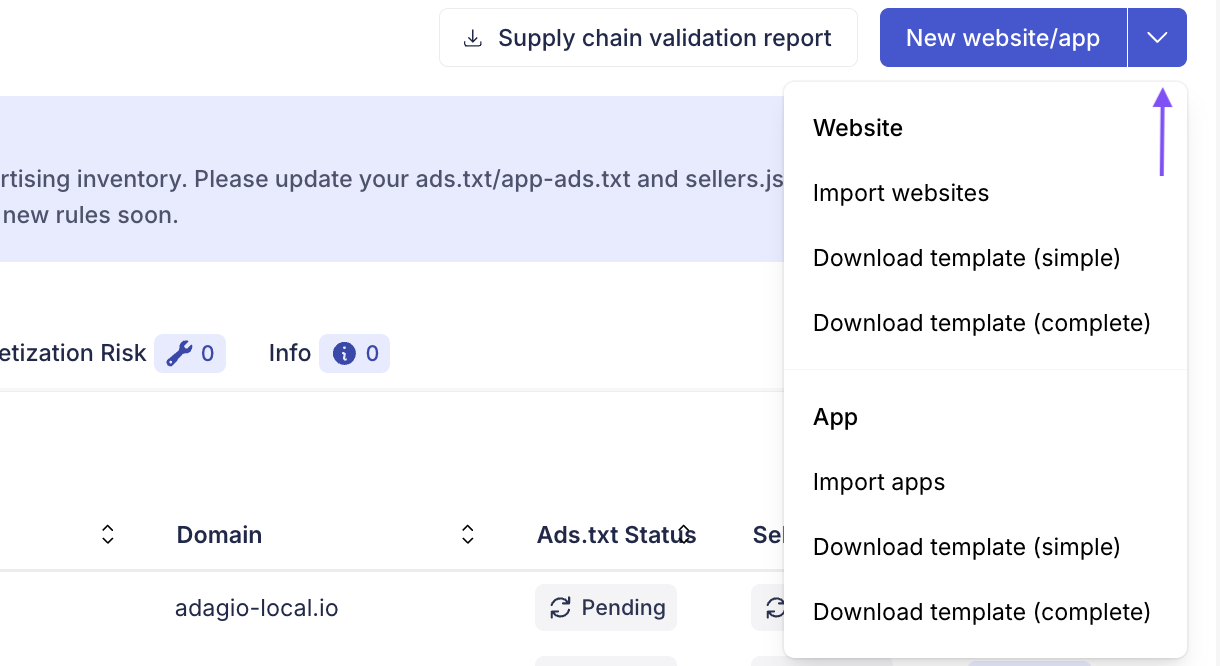
Choose to add your websites/app one by one or use our import template to add several at once.
- Hit New website/app button in the upper right corner.
- Follow the steps
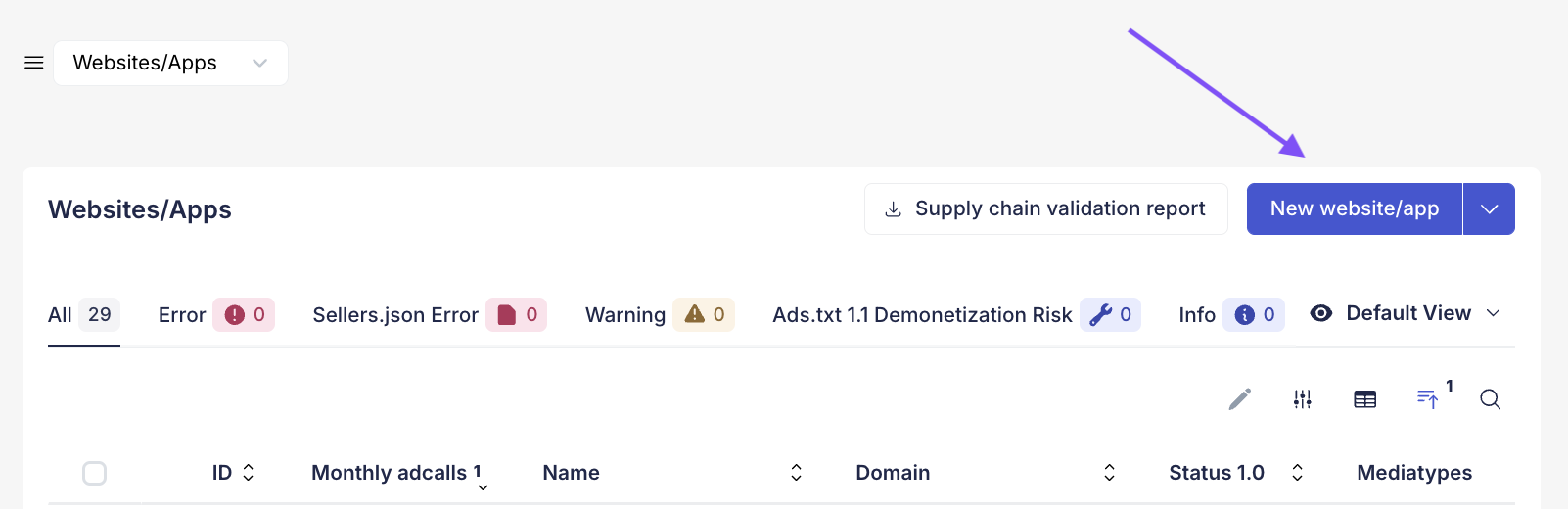
- Hit New website in the upper right corner.
- Download the template and import the completed CSV file by hitting “import websites” or “import apps”.